
Fairer turns
Check-in order is the base of the queue. Completed players return to the back, while the selected matching style adds the rules your group needs.
PickleQ turns check-in, court rotation, match results, live updates, and stats into one simple flow. Staff runs the session from one screen; players can follow the queue from their own phones.
Guide refreshed for the current PickleQ flow · September 2026
A good open play session should feel organized without feeling over-managed. PickleQ gives the organizer a reliable operating rhythm and gives players visibility without making them crowd around the staff device.
Check-in order is the base of the queue. Completed players return to the back, while the selected matching style adds the rules your group needs.
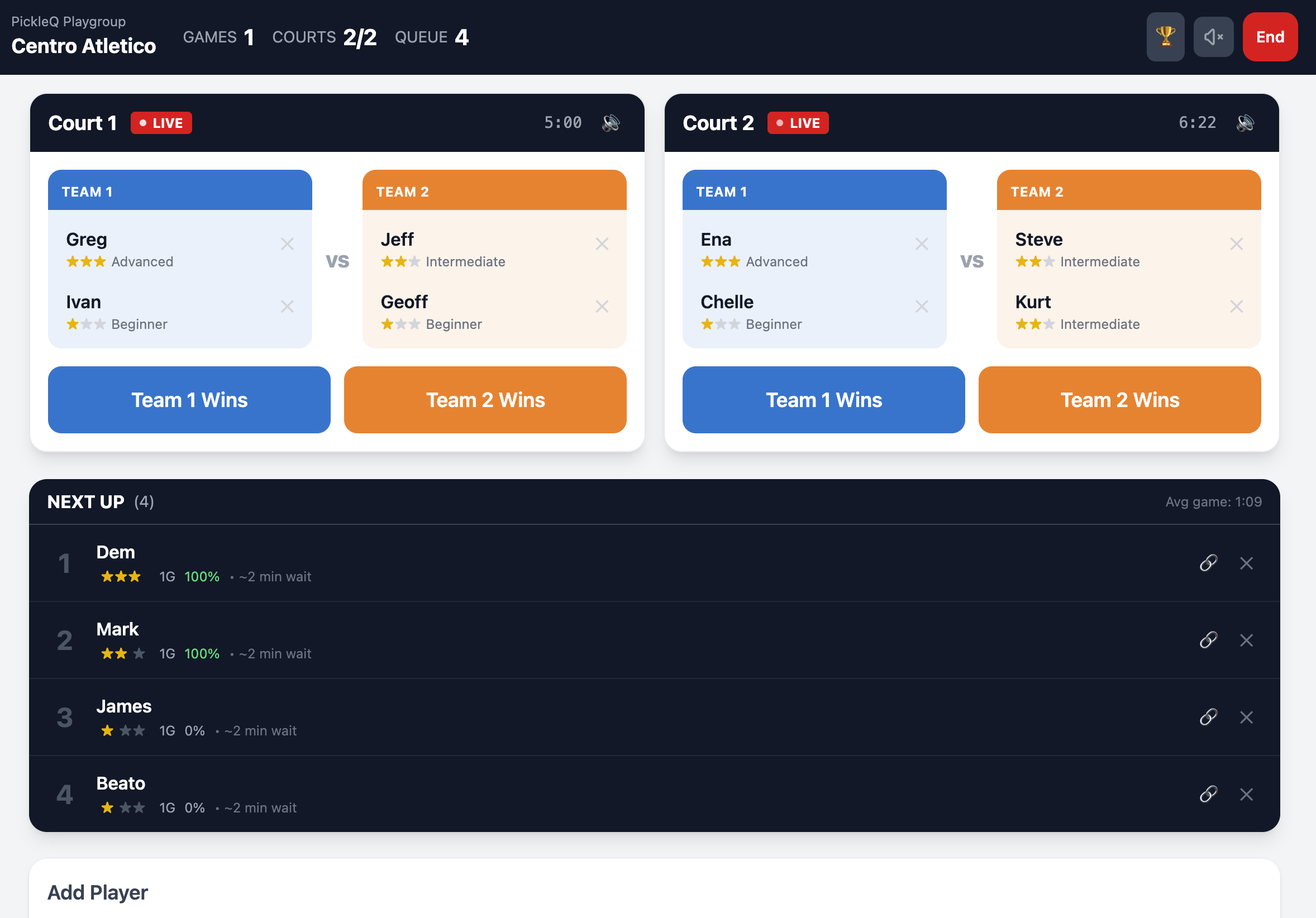
See active courts, waiting players, estimated waits, and staged matches in one place. Call players when a court is ready.
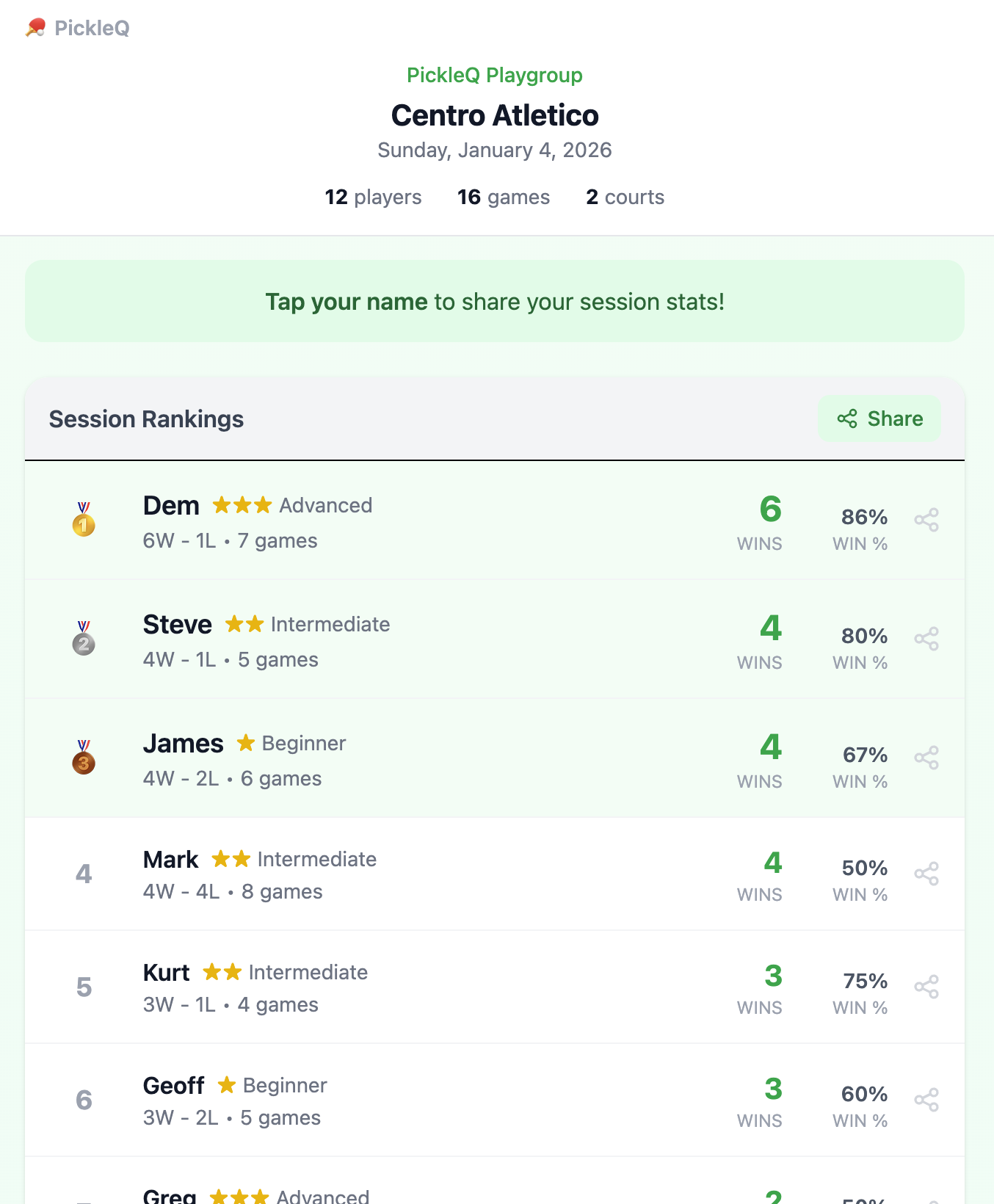
End with session rankings, player result cards, and—when a club is connected—lifetime stats and public pages.
Best first choice: For a normal mixed open play session, select Balanced, add the players, and let PickleQ do the queue work. Explore special formats only when your group has a specific reason.
The first time you tap Get Started, PickleQ asks how you plan to use it. You can begin casually and connect a club later.
Use this for a one-off or informal session. No account or club is required.
You can add cloud sync later if the group becomes a recurring club.
Use this for a club, venue, recurring group, or staff-run program.
Already have a club? Use Already have a club? Log in on the same screen.
Returning staff: Open /app. If a club is stored on the device, PickleQ will take you back to its staff flow; otherwise it starts local setup.
Once you are in the staff app, this is the loop you repeat every session.
Choose the number of courts, session name, play format, and game mode.
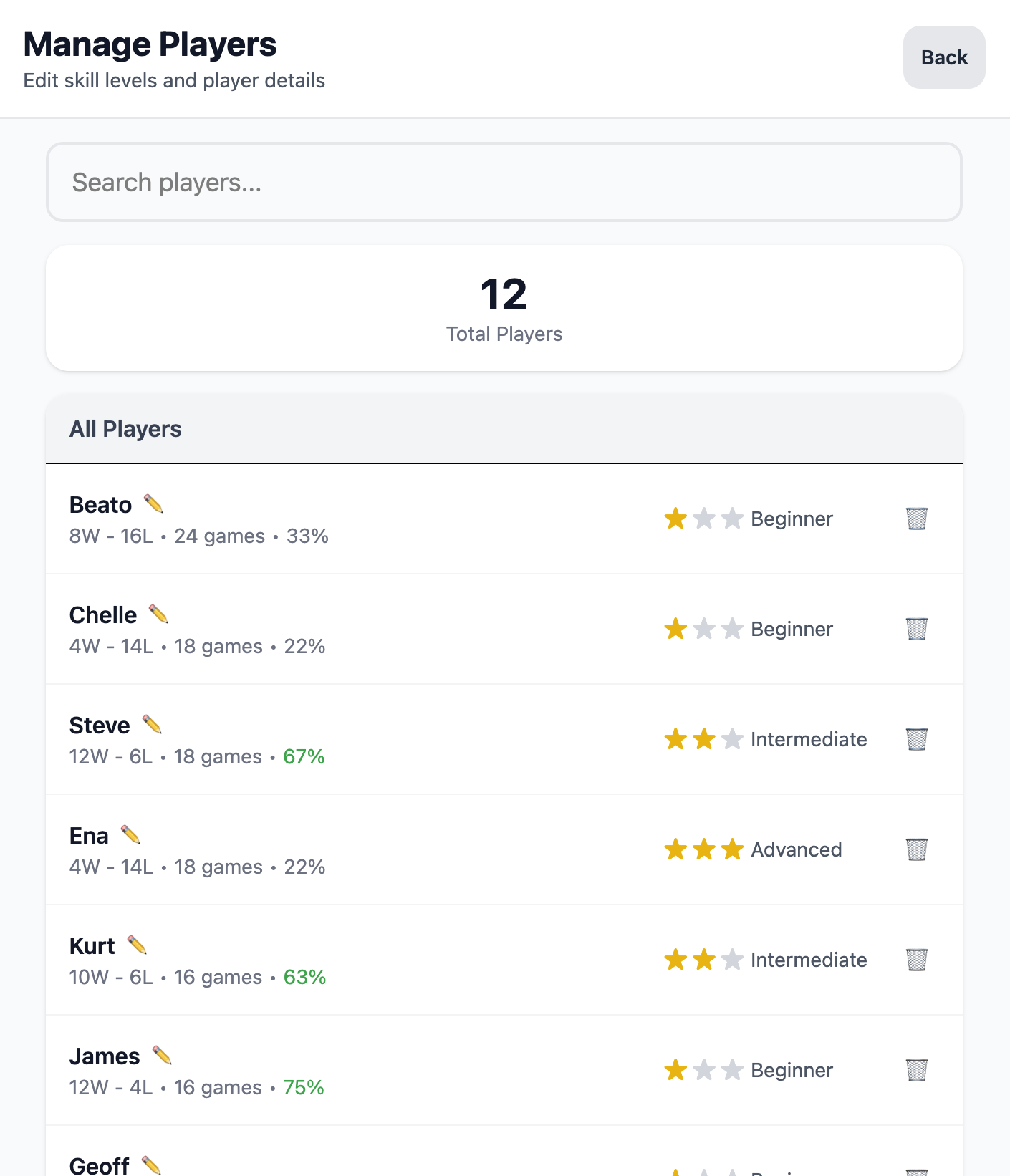
Search your saved roster, add walk-ins, or import Reclub participants.
Check in at least 4 players for doubles or 2 for singles.
Start the session, review the first Up Next matches, and send them to courts when ready.
Record winners or scores, start the next staged match, and repeat.
Important: PickleQ keeps the next match under staff control. Recording a result does not force every court to start immediately; use the staged Up Next cards when the court and players are ready.
These screens show the core journey. Sample names and numbers are illustrative; the controls and labels are the useful part to recognize.
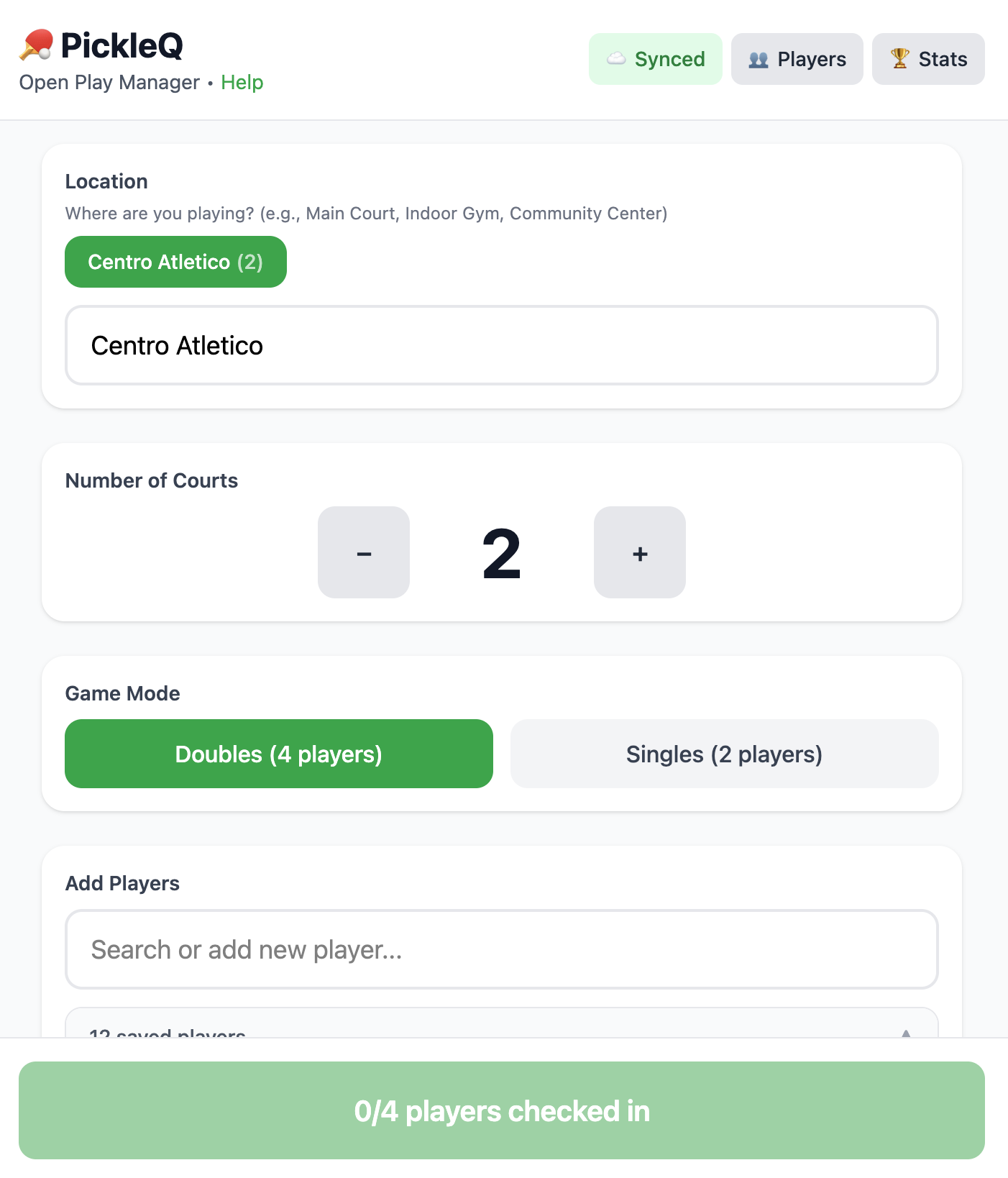
In Courts, use + or − to match the courts available today. PickleQ supports 1–64 courts; the free limit is 4 courts per club, with 5+ courts available through Venue Pro.
Select Open Play for a rotating session. If your club has tournament access, select Tournament for fixed teams and a generated schedule.
Choose Doubles or Singles. Doubles needs 4 players per court; singles needs 2. Tournament is doubles only.
Open Session options only when needed. It contains live standings, max games per player, DUPR Mode when available, and kiosk result behavior.
For most sessions, use Balanced. The other modes are explained in Matching styles.
Keep the name useful: Tap Rename beside the session name if players need to distinguish “Tuesday Night Open Play” from another session at the same club.
Clubs with Venue Pro can open Player Self-Check-In and show a phone QR or set up a shared kiosk. This reduces the line at the staff device; the organizer still controls the session.
Before starting: Check the names, skill levels, gender data used by Mixed Doubles, and any linked pairs. These inputs affect who can be matched.
Find the completed court in Live Courts.
Tap Team 1 Wins or Team 2 Wins. In DUPR or tournament formats, enter the score when PickleQ asks for it.
Check the new Up Next card, adjust players if needed, then use the card’s start/send control when the court is ready.
Use the visible Undo action soon after a result or preview change. For an older result, open the match log from the stats screen to swap the winner or edit the score.
Why PickleQ pauses: Results update the queue, but the organizer decides when each court starts. That prevents one quick result from unexpectedly dispatching players while another court is still finishing.
Tap End, review the confirmation, and choose End Session. If active matches remain, make sure that is intentional.
Review Session Rankings. Rankings use wins first, then exact win rate and schedule strength. Displayed percentages are rounded, and exact ties share a rank.
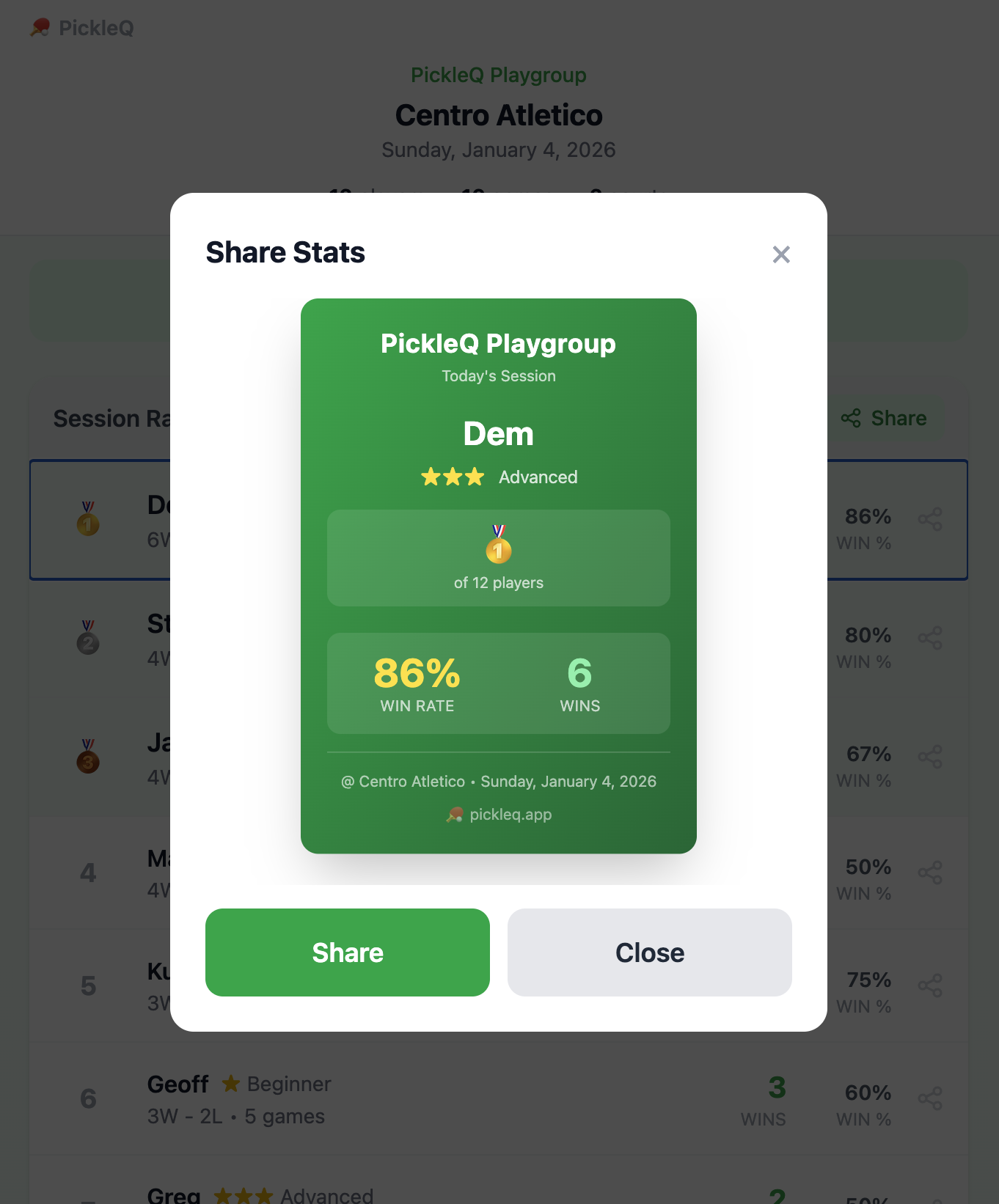
Tap a player to open their result card, then Share Stats or save the image. You can also share the session leaderboard.
Choose New Session when you are ready. The saved roster and useful setup choices remain available.
Use the session screen for today’s wins, games, rankings, match history, result corrections, and player cards.
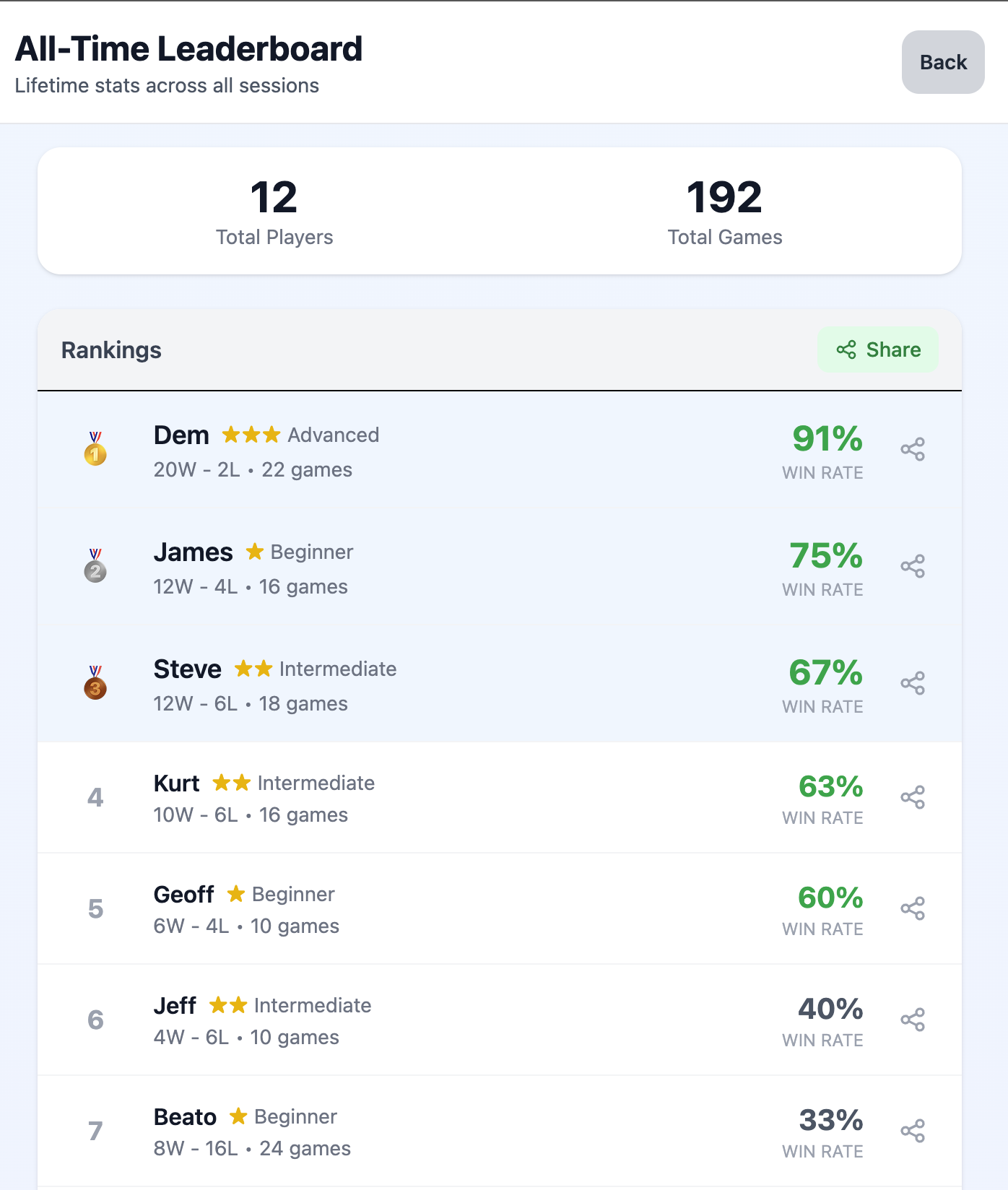
With a connected club, use /club/your-club for the public all-time leaderboard. The default minimum is 10 lifetime games and staff can change it from Club Settings.
DUPR workflow: Turn on DUPR Mode before play, save player DUPR IDs, record scores, then use DUPR Export on the results screen to download the CSV. Normal open play does not require this.
PickleQ keeps queue order as the starting point, then applies the rules of the selected format. Choose the simplest style that matches your session.
| Style | What it does | Best when |
|---|---|---|
| Balanced | Builds fair teams and turns while trying to reduce repeat partners. | Most mixed open play. This is the recommended default. |
| Skill Separated | Keeps similar skill levels together, even if a court has to wait. | Your group has a wide range of skill. |
| Winners / Losers | Winners play winners and losers play losers. | Competitive ladder-style open play. |
| Skill Courts | Runs separate queues for named skill groups on dedicated courts. | You run beginner/intermediate/advanced pools at once. |
| Mixed Doubles | Forms each team with one male and one female player. | Your session has a mixed-doubles rule and complete gender data. |
| King/Queen of the Court | Winners move up courts and losers move down; partners can rotate or stay together. | A court-ladder event. |
| Club Wars | Two named groups compete; every match is Group A versus Group B. | An inter-club or team-vs-team event. Venue Pro beta feature. |
| Tournament | Creates fixed doubles teams, a schedule, and optional pools/playoffs. | You need a scheduled competition rather than rotating open play. |
Singles: Select Singles for 1v1 play. It uses its own pairing flow, does not use the doubles matching styles, and does not support partner locks.
PickleQ has six optional skill levels. A skill level helps matching and replacement choices; it is not a permanent rating.
| Stars | Label | Approximate DUPR band |
|---|---|---|
| ★ | Beginner | ~2.0 |
| ★★ | Advanced Beginner | ~2.5 |
| ★★★ | Intermediate | ~3.0 |
| ★★★★ | Advanced Intermediate | ~3.5 |
| ★★★★★ | Advanced | ~4.0 |
| ★★★★★★ | Expert | ~4.5+ |
Choose I organize open play, then select New Club or Existing Club.
To create one, enter a club name, a private recovery email, a club link slug, and a password with at least 12 characters. Confirm the password, then choose Create Club.
To join one, enter the club link slug and club password, then choose Join Club. Use Forgot password? if you need a reset email.
Keep the recovery email current. It is for staff password recovery and is not shown to players. Do not put a shared public inbox there unless the club controls it.
pickleq.app/club/your-club and a QR code./club/your-club/live.Older links: PickleQ still accepts the legacy /venue/... form and redirects it to the canonical /club/... link.
PickleQ is free for up to 4 courts per club. Venue Pro is for clubs that need 5+ courts, player QR check-in, shared kiosk mode, DUPR Mode and exports, saved divisions, or Club Wars. If a control is marked Venue Pro, the core session still works without it.
Recommended rollout: Run one normal Balanced session first. Connect a club when you need history or public links. Add self check-in, kiosk, divisions, or DUPR only when that operational need is real.
Players do not need the staff device for every question. Give them the club link or live-session QR and let PickleQ show the current state.
The public live page requires a connected club and an active staff-published live session. Tap your name on the live page when offered to enable a browser alert, vibration, or chime as you move into Up Next. Browser notification and sound permissions can affect this.
Open the session results link or the club leaderboard. Tap your name for wins, losses, games, win rate, skill, and a shareable result card.
Doubles needs 4 checked-in players; Singles needs 2. If the button is still blocked, look for a live-session warning, a missing Club Wars/Venue Pro requirement, or an incomplete tournament schedule.
That is expected. Review Up Next, adjust the card if needed, and start/send the match when the court is ready. Staff control prevents premature dispatch.
Remove the player from the court, then use the court’s auto-fill or Choose Players action. Check the mode rules if PickleQ rejects a replacement.
Use the visible Undo action. For an older result, open the match log from the stats screen and swap the winner or edit the score.
Confirm that the staff device is online, the club is connected, and the staff app shows an active live session. Re-share the current link or QR; old live links may belong to a finished session.
Do not clear browser data. Keep the staff device open and restore connectivity; PickleQ retries automatically. If Live View or session results still have not caught up after the connection returns, message PickleQ on Messenger.
Local play is tied to the browser/device that stored it. Private browsing, clearing site data, or switching browsers can hide local records. A connected club can restore cloud-backed roster and history after staff logs in again.
No for casual local play. A club is the right choice when you want staff sign-in, shared history, public links, live view, or club operations.
Message PickleQ on Messenger with the club/session context and what the screen shows. Avoid sharing passwords or private player details.
Start with Balanced, four players, and one court. You can add every advanced feature when your group is ready for it.